
Help: Search the site
- What this search covers
- Does Statistics Canada collect this information?
- Search features
- Search commands
What this search covers
To improve your results, our search now starts with the Latest information on our site. This includes:
- Studies for the past 5 years
- Data publications for the past 2 years
- Census 2021
- Pages that our users look for most often
If you can't find what you are looking for, try searching All. You will be searching everything on our site including our Latest content.
Search features
Try also
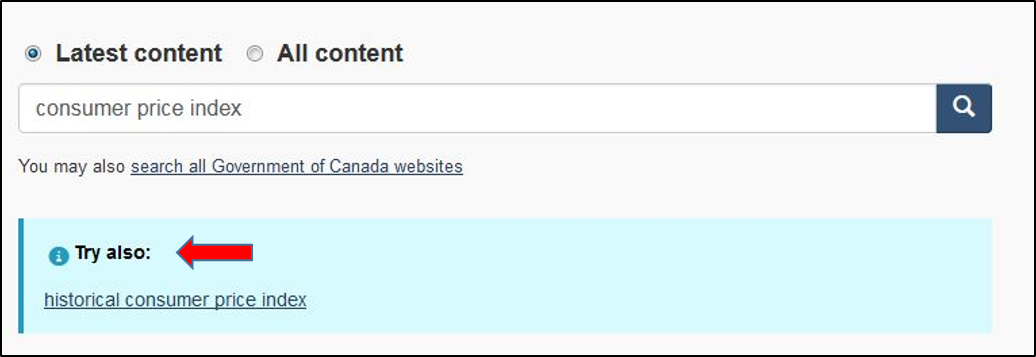
Suggests terms used at Statistics Canada and also related search suggestions.
Suggested links
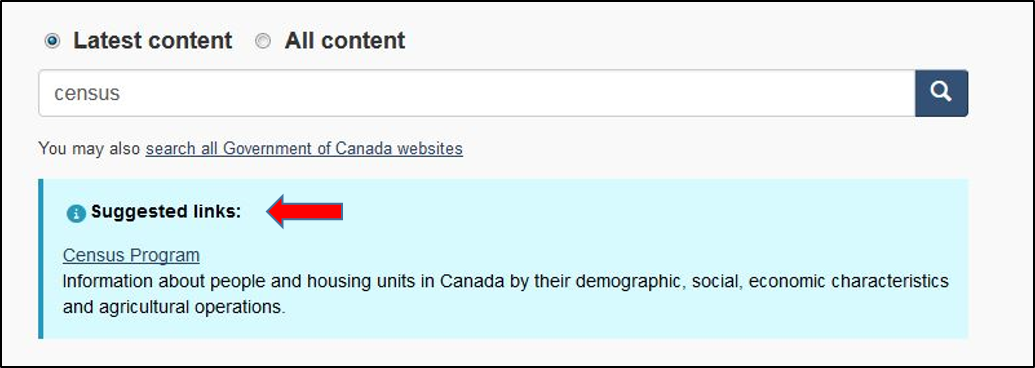
Based on the most popular searches, suggested links provide direct answers and direct sources of information and are located above the search results.
Key indicators
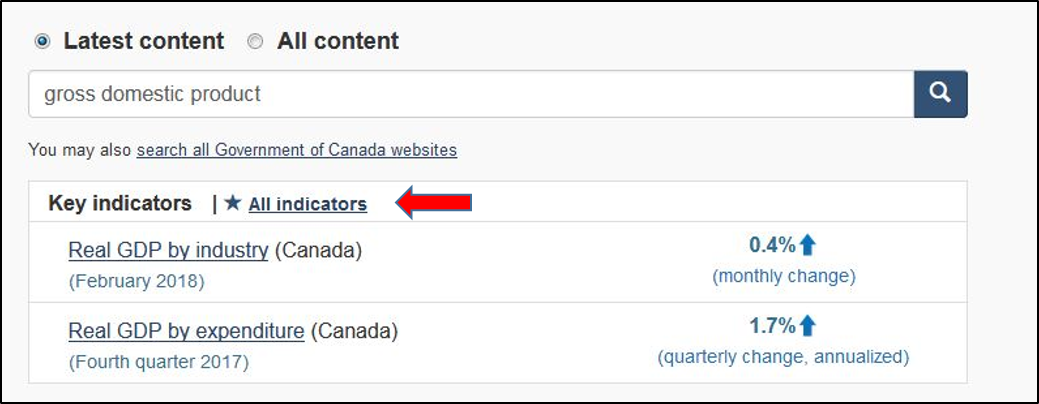
Located above the search results, key indicators provide easy access to Statistics Canada's major economic and social statistics indicators. View all available indicators by selecting the "All indicators" link.
Sort by
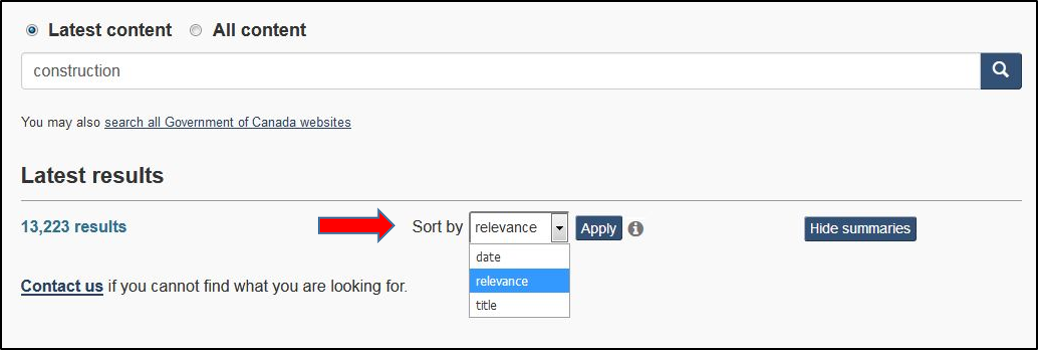
The Sort by feature provides three options:
- Date – sorts results by release date starting with the most recent.
- Relevance – results are ordered by a combination of where the search term appears in the content, e.g., if it appears in the title, it likely means the product is more relevant to your search; how up to date or new the content in the product is; how popular the product is; and other factors.
- Title – sorts results alphabetically.
By default, results are sorted by relevance.
View HTML/PDF
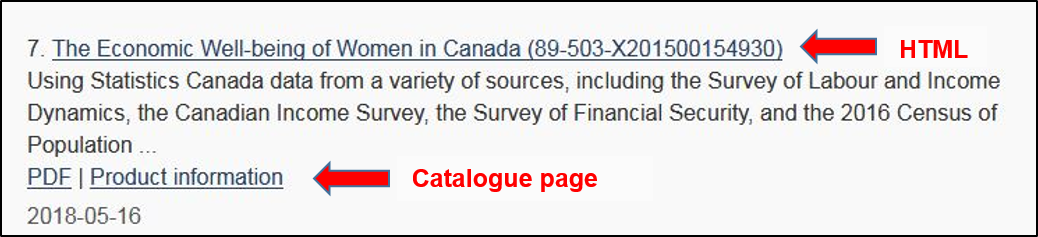
The title link to search results goes directly to the html page. To access the catalogue page, select the "Product information" link.
Search commands
| Operation | Example | Description |
|---|---|---|
| Boolean operators | ||
| AND + |
Income AND Labour +Income +Labour |
Both terms must be included in the document. |
| OR | Income OR Labour | Either one term or both terms must be included in the document. |
| NOT - |
Income NOT Labour Income -Labour |
Excludes a term (labour). |
| By default, the operator for search is AND Boolean operators must be capitalized There is no space after the "+" or "-" operators |
||
| Phrase search | ||
| " " | "income in Canada" | Quotes are used to tell the search engine which terms must be found together in the document. |
| Wildcards | ||
| * | immigr* ➔ immigration, immigrated, immigrating, immigrant, immigrants. *cipl* ➔ principle and discipline |
A wildcard, * is used to replace any number of characters in the search term. |
| A wildcard can be in any position in a word Search automatically provides the stemming of a word, e.g., income ➔ incomes |
||
| Metadata field searches | ||
| title | title:"Health Reports" | Provides a title search. |
| There is no space after the colon. | ||
- Date modified: